


Cyana Guide
Cyana is SimpleHelp's integrated AI assistant. It provides technicians with an intelligent, conversational interface that can interact with remote machines, diagnose issues, run commands, manage files and services, and execute scripts across one or many machines at once.
This guide covers how to configure Cyana, use it during day-to-day support and remote access workflows, and get the most out of its capabilities.
Setting Up Cyana
Before technicians can use Cyana, a server administrator must complete two stages:
- Request a Cyana trial licence for the SimpleHelp server.
- Configure and test an LLM endpoint that Cyana can use.
Cyana supports a range of providers including Anthropic, OpenAI, Google Gemini, Azure, Mistral, Cohere, and any OpenAI-compatible service.
Requesting a Cyana Trial
To enable a Cyana trial for your server:
- Log in as a server administrator and select the Administration tab.
- Open Licence under Getting Started.
- Click Request Cyana Trial.
- Wait for confirmation that the trial licence has been requested. The licence summary will refresh automatically.
The trial request is available when the server is linked to an eligible SimpleHelp account. If Request Cyana Trial is not shown and the server does not already have a Cyana licence, confirm that the server is linked to the correct SimpleHelp account. Contact SimpleHelp if the server is linked but the trial action is still unavailable.
Once the Cyana trial is active, configure an LLM endpoint as described below.
Accessing the AI Configuration
To configure Cyana:
- Log in as a server administrator and select the Administration tab.
- Navigate to the Cyana section under Server Settings.
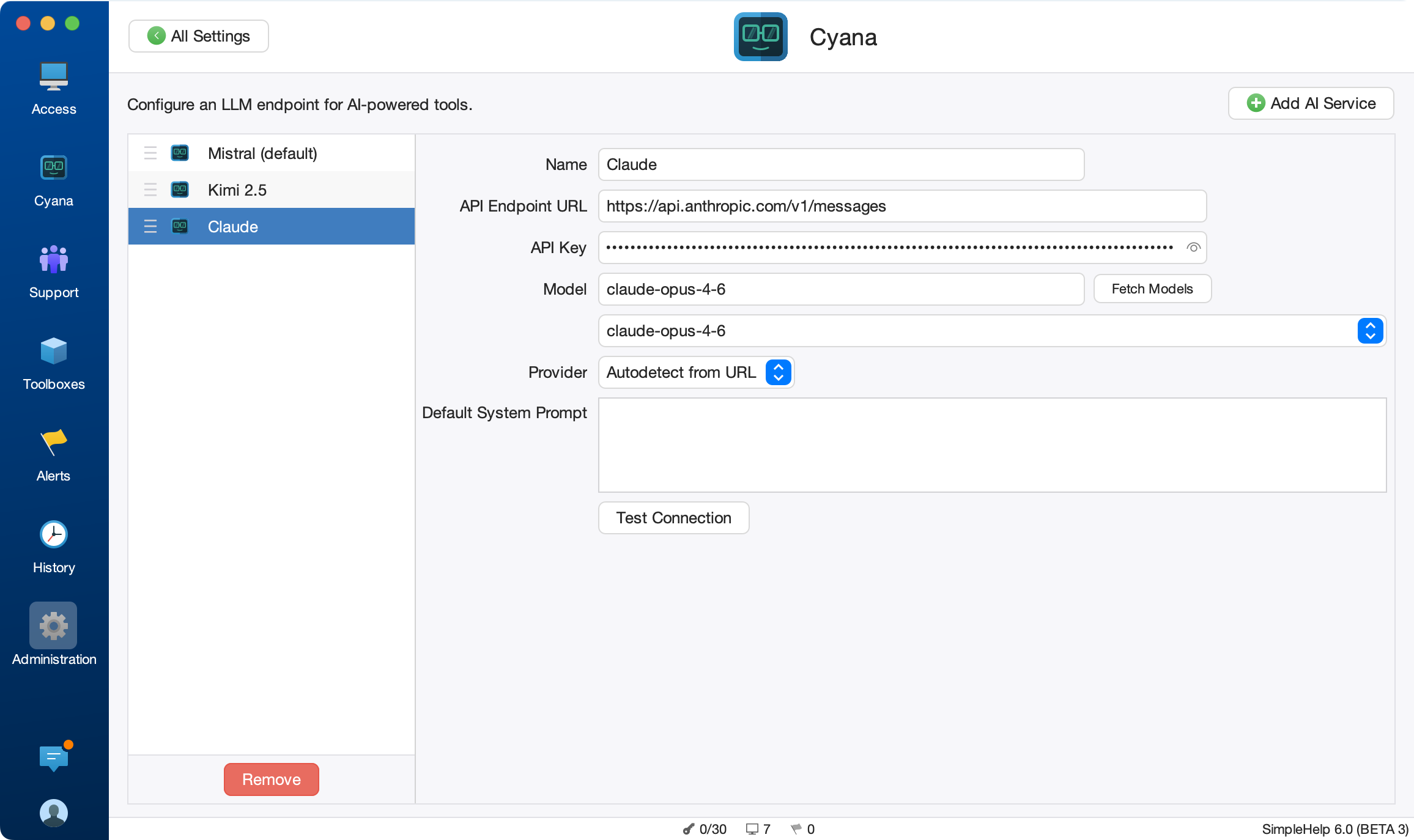
Adding an LLM Endpoint
- Click the Add AI Service button in the top right panel to create a new endpoint.
- Fill in the following fields:
| X | X |
|---|---|
| Name | A descriptive name for this endpoint, displayed to technicians when multiple endpoints are configured. |
| Endpoint URL | The API URL for the provider, for example https://api.anthropic.com/v1/messages for Anthropic or https://api.openai.com/v1/chat/completions for OpenAI. |
| API Key | Your API key from the provider. This is stored encrypted on the SimpleHelp server. |
| Model | The model to use, for example claude-sonnet-4-20250514 or gpt-4o. You can type a model name directly or use the Fetch Models button to retrieve a list of available models. |
| Provider | The LLM provider. Select Autodetect to let SimpleHelp determine the provider from the URL, or choose a specific provider from the dropdown. |
| Default Prompt | An optional system prompt override. Leave this blank to use the built-in SimpleHelp system prompt, which is designed to work well with the available tools. |
Testing the Connection
After entering the endpoint details, click the Test Connection button to verify that SimpleHelp can reach the provider and authenticate successfully. A green checkmark indicates a successful connection. If the connection fails, verify the URL, API key and that the server can reach the provider on the network.
Multiple Endpoints
You can configure more than one endpoint. When multiple endpoints are available, technicians will see a dropdown in the Cyana interface to select which endpoint to use. The first endpoint in the list is used by default. You can drag endpoints in the list to reorder them.
You may want to configure multiple endpoints for the same provider to allow Technicians to switch between models with different limits on the same AI provider.
To remove an endpoint, select it and click the Deregister button.
Enabling and Disabling Cyana
Cyana can be enabled or disabled at the server level via the Features section of the Administration Console. When disabled, the Cyana interface is hidden from all technicians.
Using Cyana Command
Cyana Command is the primary AI interface, available as a tab in the main technician console alongside the Access, Support, and other tabs. It is designed for managing machines outside of an active remote session.
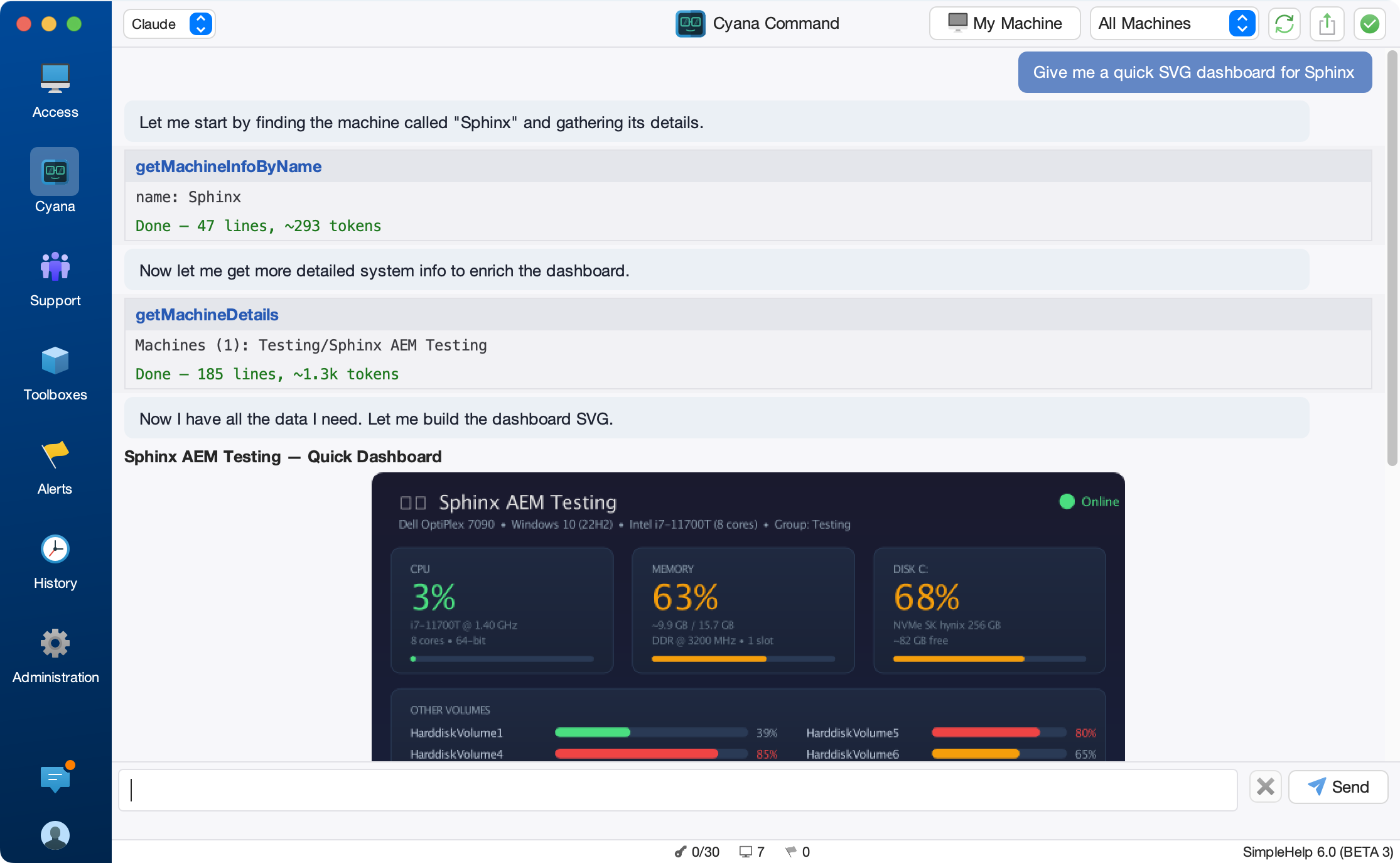
The Chat Interface
The Cyana Command interface consists of three areas:
- Top Bar - displays the Cyana title, an endpoint selector (when multiple endpoints are configured), and buttons for starting a new session, exporting the conversation, and configuring auto-approve settings.
- Conversation Area - displays the conversation history, including your messages, Cyana's responses, and tool execution blocks.
- Input Area - a text field where you type your prompts. Press Enter to send, or Shift+Enter to add a new line.
Selecting a Scope
Before sending a prompt you can choose which machines Cyana should have access to:
- All Machines - Cyana can discover and interact with all machines registered on the server.
- Choose Group - restricts Cyana to machines within a specific group. Select Choose Group from the dropdown and pick a group from the tree.
- My Machine - toggle the My Machine button to give Cyana access to the technician's own machine in addition to the selected scope.
The scope determines which machines Cyana can see and which tools it can run. For example, if you select a specific group, Cyana will only list and operate on machines in that group.
Sending a Prompt
Type a message describing what you would like Cyana to do and press Enter. Cyana will analyse your request, identify the relevant machines, and determine which tools to use. For example:
- "Find all machines with less than 10% free disk space and generate a detailed cleanup report"
- "List all running services across the Finance group and flag any that are stopped but set to automatic"
- "Check all servers for low disk space or S.M.A.R.T. drive warnings and summarise the findings"
Cyana maintains conversation context, so you can ask follow-up questions or refine your request without repeating yourself.
Reviewing and Approving Tools
When Cyana determines that it needs to perform an action, such as running a command, reading a file, or restarting a service, it will present a tool approval block before executing. Each block shows:
- The tool name (for example, runCommand, readFile, restartService).
- A summary of the arguments (for example, the command to run or the file path to read).
- Approve and Deny buttons.

The Technician must review and approve each tool call before it executes. If the tool involves a script, you can click the View Script link to inspect the full script in a separate window before approving.
Tools that only read information (such as getting machine details or listing environment variables) do not require approval and will execute automatically.
Tool Execution Results
After a tool executes, Cyana displays a summary showing the number of output lines and an estimated token count. Cyana then uses the result to continue its analysis, run further tools, or provide a final answer.
If you deny a tool call, Cyana is informed and will adjust its approach or ask for clarification.
Cancelling a Request
If Cyana is processing a request and you wish to stop it, click the Cancel button next to the input field. The conversation will remain intact and you can continue from where you left off.
Using Cyana in a Session
Cyana Session is available as a sidebar panel during an active remote support or remote access session. It provides the same conversational AI interface but is scoped to the single machine you are connected to.
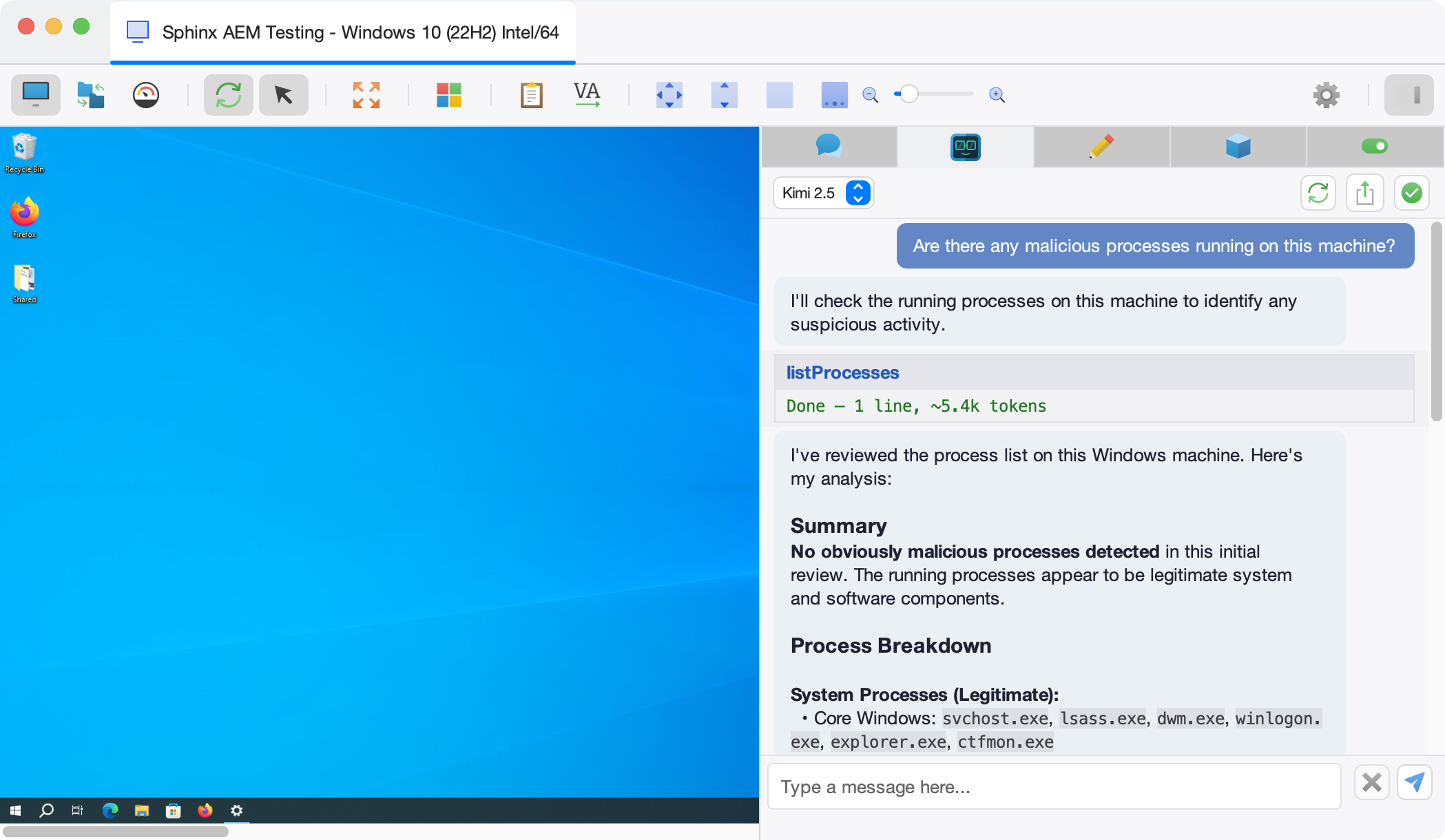
Opening Cyana Session
During a remote session, look for the Cyana Session tab in the sidebar on the right-hand side of the session window. Click the tab to open the Cyana chat panel.
Session-Specific Capabilities
In session mode, Cyana has access to the remote machine through the session's existing connection. This means:
- Tools execute on the connected machine via the session relay.
- Cyana can capture a screenshot of the remote machine's current screen to help with visual diagnosis.
- The conversation context is specific to this session and is separate from any Cyana Command conversations.
This is particularly useful for real-time troubleshooting. For example, you can ask Cyana to check event logs, diagnose a crashing application, or inspect configuration files while you observe the remote screen.
Tools and Capabilities
Cyana has access to a comprehensive set of tools that allow it to interact with machines. The technician always retains control, and most tools require explicit approval before they execute.
File Operations
Cyana can read, write, copy, move, and delete files on remote machines. It can also create directories and list directory contents with detailed metadata including size, permissions, and timestamps.
Search and Query
Cyana can search within files using text patterns (similar to grep) and find files by name using glob patterns.
Command Execution
Cyana can run shell commands on remote machines, capturing the exit code, standard output, and standard error. This is useful for any operation not covered by the dedicated tools.
Process and Service Management
Cyana can list processes and terminate them with approval. Cyana can also list and manage services on Windows and other operating systems.
System Information
Cyana can use the existing powerful SimpleHelp information gathering and access points to gather information about many machines in one request.
Scripting
Cyana can generate and execute scripts for complex, multi-step operations that are difficult to express as individual commands. Scripts run in a sandboxed environment. As with all tools, scripts are always presented for full review and approval before execution.
Tag Management
Cyana can read and modify the tags assigned to machines. Tags are arbitrary labels used for organisation and grouping within SimpleHelp.
Web Research
Cyana can research topics on the web using a specially constructed sandbox to avoid malicious content. You can approve a single URL or trust an entire domain for the duration of the session.
Multi-Machine Operations
One of Cyana's most powerful features is the ability to operate across multiple machines simultaneously. When using Cyana Command with a broad scope (such as All Machines or a group), Cyana can:
- Discover machines using the List Machines tool.
- Query machine details for one or more machines by ID or by name.
- Run any tool (read files, execute commands, manage services, etc.) across multiple machines in parallel.
Results from multi-machine operations are returned per machine, making it straightforward to compare configurations, audit software, or apply changes across a fleet.
For example, you might ask:
- "Restart the printer spooler service on every machine in the Sales group"
- "Check all Windows machines for outdated browsers and summarise the results"
- "Create a CSV with machine name and BitLocker keys"
Cyana will identify the relevant machines, run the necessary tools in parallel, and collate the results.
Script Assistance
Cyana integrates with the SimpleHelp Toolbox script editor. When writing a script in the Toolbox, you can use Cyana in two modes:
- Script Assist - describe what you want the script to do, and Cyana will generate the script code. The generated code is inserted directly into the script editor for review.
- Script Question - ask Cyana to explain or help debug an existing script.
This is useful for technicians who need to create automation scripts but may not be familiar with the scripting language.
Auto-Approve and Trust Settings
For experienced technicians working on routine tasks with a trusted AI provider, Cyana provides an auto-approve feature that allows certain tools to execute without manual approval each time.
Configuring Auto-Approve
Click the Auto-Approve Settings button (checkmark icon) in the top bar of the Cyana interface. You will see:
- A list of available tools, each with a checkbox to enable auto-approval.
- A list of whitelisted domains for web page fetches.
- A liability acknowledgement checkbox that must be accepted before auto-approve takes effect.
Domain Trust for Web Research
When Cyana requests to fetch a web page, you can choose to:
- Approve the individual URL.
- Trust the entire domain for the remainder of the session, so future fetches from the same domain do not require further approval.
Exporting Conversations
You can export a Cyana conversation to PDF for record-keeping or sharing. Click the Export PDF button in the top bar and choose a save location. The exported PDF includes the full conversation history, including tool calls and their results.
Permissions
Access to Cyana is controlled at two levels:
Server Level
The server administrator can enable or disable Cyana for the entire server via the Features section of the Administration Console. When disabled, the Cyana tab and session panel are hidden from all technicians.
Technician Group Level
Within each Technician Group, the administrator can control whether members of that group are allowed to use Cyana. This is managed via the group permissions settings.
| X | X |
|---|---|
| Can use AI | When enabled, technicians in this group can access the Cyana Command tab and the Cyana Session panel. |
By default, the AI permission is enabled for all groups. To restrict access, uncheck this permission for the relevant group.
Troubleshooting
"Cyana is not configured"
This message appears when no LLM endpoints have been configured on the server. If you are a server administrator, click the Configure Cyana button to go directly to the AI configuration section. Otherwise, ask your administrator to set up an endpoint.
Connection Failures
If the Test Connection button fails:
- Verify that the Endpoint URL is correct for your provider.
- Check that the API Key is valid and has not expired.
- Ensure the SimpleHelp server can reach the provider's API on the network (check firewalls and proxy settings).
- Try selecting a specific Provider instead of Autodetect.
No Models Available
If the Fetch Models button returns no results, ensure the API key has permission to list models with the selected provider. You can always type a model name directly into the Model field.
Tool Execution Failures
If a tool fails to execute, Cyana will display an error message with details. Common causes include:
- The remote machine is offline or unreachable.
- The tool requires elevated permissions that the remote access service does not have.
- A command timed out (the default timeout is 120 seconds).
Cyana will attempt to diagnose the issue and suggest alternative approaches.