


Installing SimpleHelp on macOS
When installing on macOS you will need to use Terminal.app to run the installation commands. This is available in the Utilities folder under the Applications folder.
Set up Java
SimpleHelp 6.0 requires Java 21. We suggest installing runtimes from Azul.
SimpleHelp 5.5 or later requires Java 17.
Your first step should be to check Java is installed and working. In the terminal you should run:
java -version
If Java is present you will see output similar to the following:
openjdk version "21.0.13" 2026-10-20 LTS
OpenJDK Runtime Environment Zulu21.54+107-CA (build 21.0.13+9-LTS)
OpenJDK 64-Bit Server VM Zulu21.54+107-CA (build 21.0.13+9-LTS, mixed mode, sharing)
In the example above, the version 21.0.13 signifies a Java 21 installation. Make sure that your Java runtime is of an appropriate version in order to avoid launch issues.
Download, Extract and Install
Next you should download the Other Systems archive from our download page and extract the zip into the folder where you would like to install SimpleHelp.
On macOS systems we recommend installing to the /Applications folder. To do this you can open the folder, copy the zip file into it then double-click it to extract. This will produce a SimpleHelp folder.
You can run the following commands in Terminal to launch your SimpleHelp server. Depending on your user permissions configuration you should use sudo where appropriate for the shell scripts:
  cd /Applications/SimpleHelp
  sh serverstart.sh
And the following commands to stop it:
  cd /Applications/SimpleHelp
  sh serverstop.sh
As your SimpleHelp server runs it will print out some startup information and then print out a set of web addresses that you can use to connect from various locations, for example:
    (to connect from a machine across the internet)
    http://1.2.3.4:888/

    (to connect from a machine on the same network)
    http://1.2.3.4:888/

    (to connect from this machine)
    http://1.2.3.4:888/
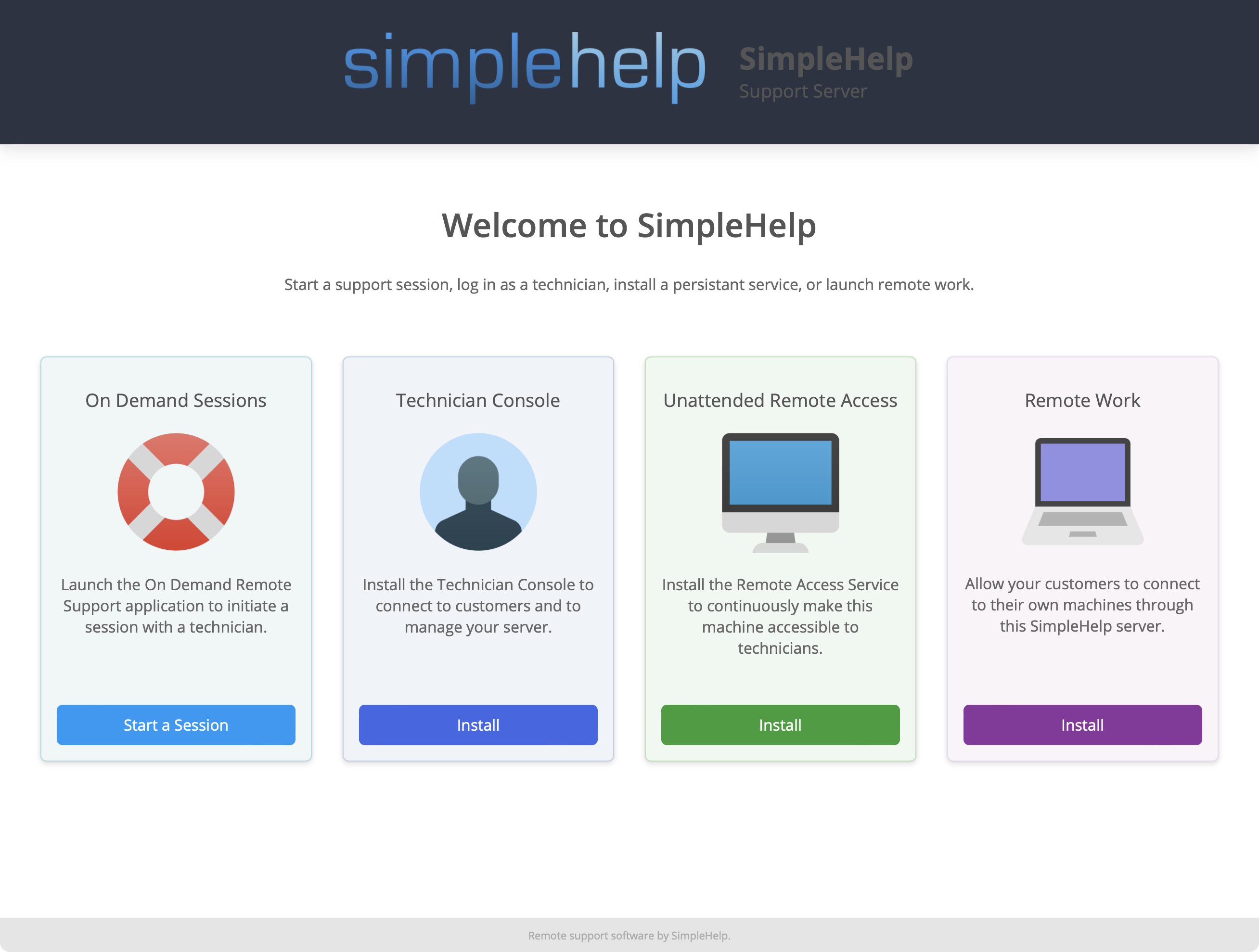
Open a browser to the relevant address and you will see the Welcome page. From here you can download and install the Technician client to use and configure your server.
Daemon Setup (Optional)
To configure your SimpleHelp server to automatically start when your macOS computer is rebooted, please see this document.