


Remote Work Guide
This guide contains details of the Remote Work features in SimpleHelp 5.2.8 and later. Please note that these instructions for setup pertain to version 5.6 and later.
Remote Work Overview
Remote Work in SimpleHelp allows you to offer your customers access to their work or home machines from a remote location. Customers using Remote Work use an app similar to the Technician app but with a much more simplified experience and many of the advanced or complex features removed.
Remote Work requires an Enterprise license to use. Remote Work sessions do not count toward usage of your usual technician sessions, they are entirely separate for licensing purposes. Enterprise licenses offer unlimited remote work sessions within your server.
SimpleHelp Versions
Remote Work functionality is currently included in SimpleHelp 5.2.8 and later. These instructions pertain to version 5.6 and later, a release in which Remote Work setup was simplified for easier access. You can download the latest release of SimpleHelp on our Downloads page.
Remote Work Setup
Your SimpleHelp enables Remote Work by default, however there are two modes of operation for Remote Work, and you will need to decide which to use. The next section discusses this.
Remote Work Authentication
Remote Work users can authenticate and then open a session to their designated remote machine in one of two ways:
- A Technician account can be created for them, and can then be attached to a Technician Group marked for Remote Work. In this case how the Remote Work user accesses machines is determined by Remote Work Connection Type setting in the Remote Work Technician Group. In the first case, permissions are controlled via the Remote Work Technician Group which they are a member of.
- Alternatively, they can be set up to log in using their Operating System login. In this case the Remote Work user may only connect to one designated remote machine. In this case, permissions are controlled via the Remote Work OS Login Group specified in the Remote Work section of the Admin tab.
Managing users via Technician accounts and a Technician group can be helpful, for example, in situations where the employees being set up for remote work already log in using LDAP or Active Directory. In this case the group can be used to authenticate them via this method.
In other situations, using Operating System logins helps remove the burden of managing accounts for all Remote Work users and allows them to log in using the existing credentials they are already familiar with.
Setting up Remote Work
There are three main steps required to allow a Remote Work session to one or more machines.
- Mark a machine as ready for Remote Work.
- Set up a Remote Work user to access the machine.
- The user can download and install the Remote Work client.
Mark a Machine For Remote Work
Any machine that is registering with your SimpleHelp server can be utilised for Remote Work purposes. To use a machine for Remote Work, select the machine entry in the Access tab and toggle the Remote Work switch on the toolbar below the machine listing. Alternatively, use the Remote Work button the in Advanced Options panel as shown below.


Any machine that is registered for remote work will continue to be available for technician sessions too.
Set Up a Remote Work User
When Remote Work is enabled on a machine, you will be presented with a setup dialog.
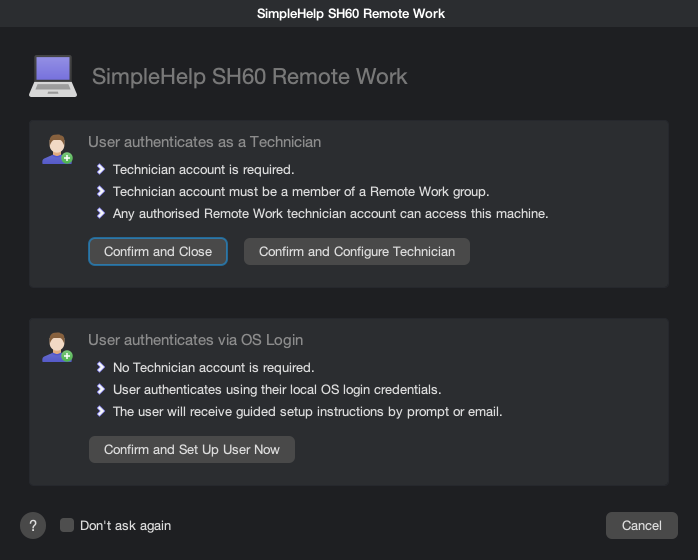
If the Remote Work user should authenticate using SimpleHelp Technician authentication then you can select Confirm and Close as no further setup is required, or if you prefer (and are logged in as an Admin) you can select Confirm and Configure Technician, to be redirected to the Technician accounts area.
If the Remote Work user should authenticate using operating system credentials, then the user's email address is required. Choose Confirm and Setup User Now to proceed.
Prompting Remote Work Users
If OS authentication is enabled in the SimpleHelp server then Remote Work users can log in to their remote machine using their local OS credentials only, with no SimpleHelp server account required. By choosing the Confirm and Setup User Now option the Administrator will be given a choice about how they wish to notify the end user of their Remote Work details.
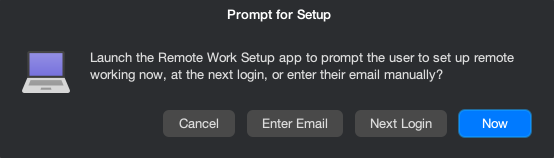
- Enter Email can be used in situations where the administrator knows the end user's email address.
- Next Login can be used to prompt the end user on the remote machine when they next login.
- Now can be used to prompt the end user immediately on the remote machine.
Both Next Login and Now will set up the Remote Work Setup application on the remote machine. When the user next logs in, the app will launch and prompt them to set up remote working. All the user has to do to set this up is enter their email address.
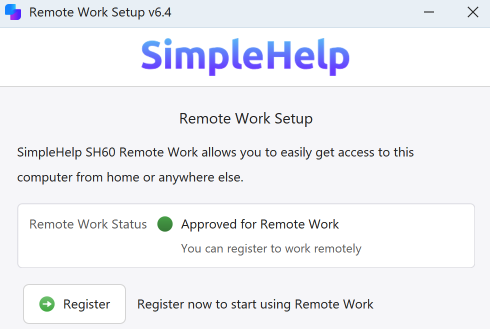
At any point thereafter the user can launch the Remote Work Setup application again on their local machine by using the Remote Work Setup shortcut. Additionally, a Technician can prompt the user to set up remote working again using the Prompt for Setup button in the Advanced Actions panel, when a machine is selected in the Access tab.
Your SimpleHelp server will then email the user a link to the Remote Work download so they can get connected to their machine.
Authenticating a Remote Work User
There are two ways to authenticate a user for Remote Work:
- OS authentication delegates the authentication of the user to the operating system on the remote machine. OS authentication must be enabled in the Remote Work section of the Administration tab and the Remote Work group must be configured with Remote Work users can only connect to a single machine enabled.
- Technician Group authentication allows users to authenticate like standard SimpleHelp Technicians using a SimpleHelp account or via a Technician Group. Note that only Technician Groups enabled for Remote Work purposes will be used to authenticate Remote Work users.
Once authenticated the user will be presented with any additional multifactor authentication steps that are specified in their Technician Group (or the default Remote Work group for OS authenticated users). We strongly advise enabled multifactor authentication to ensure that your user accounts are harder to compromise.
The Remote Work Session Interface
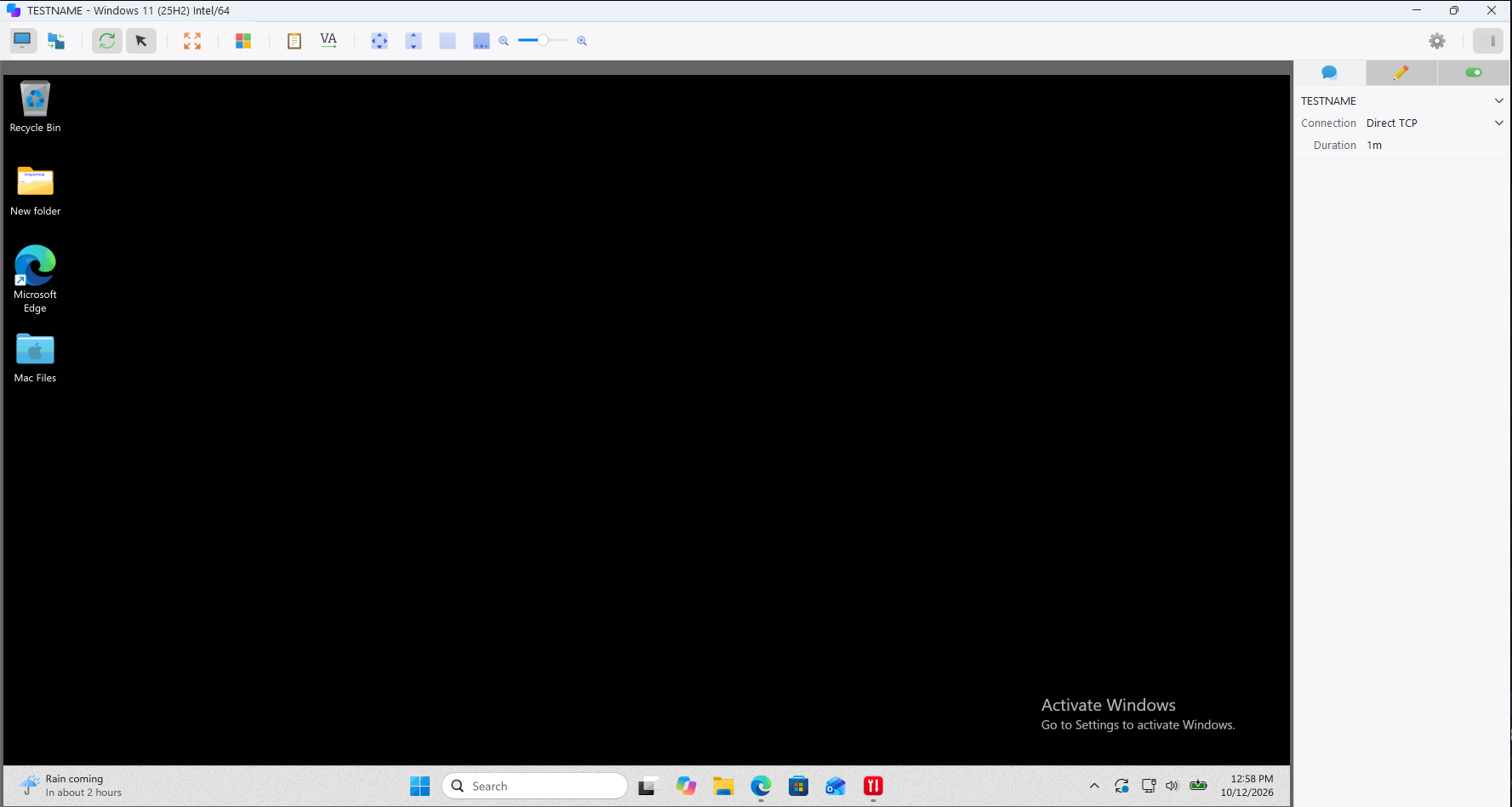
When launched the Remote Work application will connect the user directly to their remote machine with a simpler session interface. Toolboxes and Diagnostics are not available, but File Transfer is included. The user's remote work session will appear in the Access tab, but will not contribute to your normal session limit. Instead, remote working is priced per computer to make it far easier to establish billing with your customers.
Managing Remote Work
The Access tab now has a number of additional features to allow you to easily manage your Remote Work machines, sessions and users.
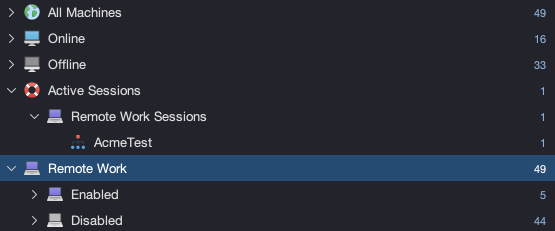
The Access tab now has a dedicated entry for Remote Work in the machine group list. This allows Technicians to easily see which machines have Remote Work enabled, and which have Remote Work disabled.
Additionally, Remote Work sessions now appear under a dedicated entry within Active Sessions. Since Remote Work Sessions are licensed independently it is useful to be able to distinguish between Technician and Remote Work Sessions.
A new Remote Work list view joins the existing machine table and machine grid views and can be switched to at any time in the Access tab.

While the Remote Work list looks similar to the machine list there are some important differences. The email address associated with a remote machine is presented along with the details of the last session that was run. Machines with Remote Work enabled appear online, while those with Remote Work disabled appear as though they are offline.

Remote Work Administration
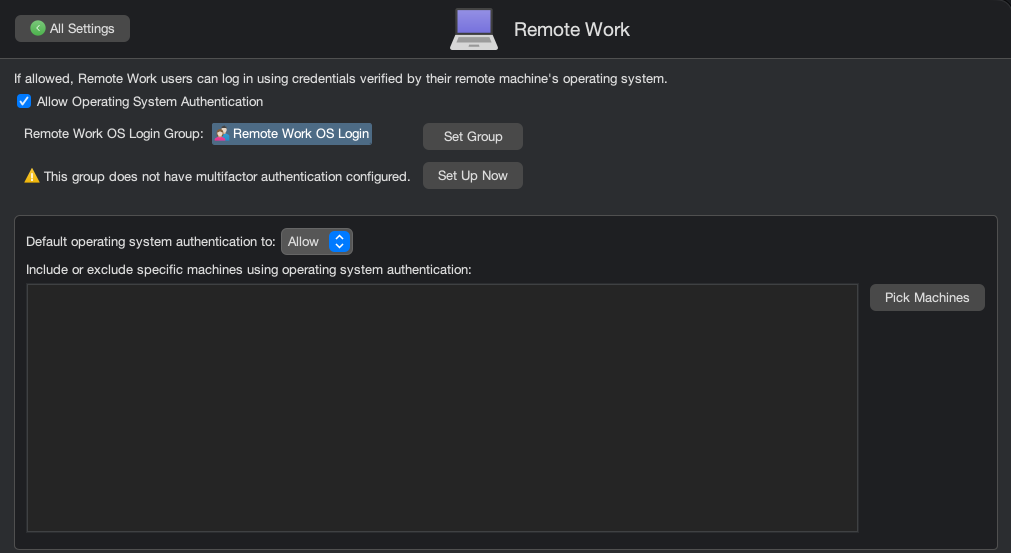
The Remote Work section of the Administration tab controls general Remote Work settings that are applied to all Remote Work users.
Technician Group settings control groups of Remote Work users that are authenticating using SimpleHelp Technician accounts.
Technician Group settings on the Remote Work OS Login Group (specified in the Remote Work section of the Administration tab) controls permissions for any Remote Work users who login with an Operating System Login.
Here you can configure whether users are able to use OS authentication and on which remote machines this type of authentication should be enabled. Since OS authenticated users do not have a Technician account, they are assigned to a default Technician Group instead. This Technician Group allows the system administrator to specify group settings and requirements that affect OS authenticated Remote Work users without needing to create each user their own account.
Remote Work Technician Groups
Any Technician Group can be used to control Remote Work logins, for OS authenticated users or for users with a SimpleHelp account. To enable a Technician Group for Remote Work follow these steps:
- In the Administration tab, switch to the Technician Groups section.
- Select a group in the group list.
- In the Group Properties tab, enable the option Group used for Remote Work logins.
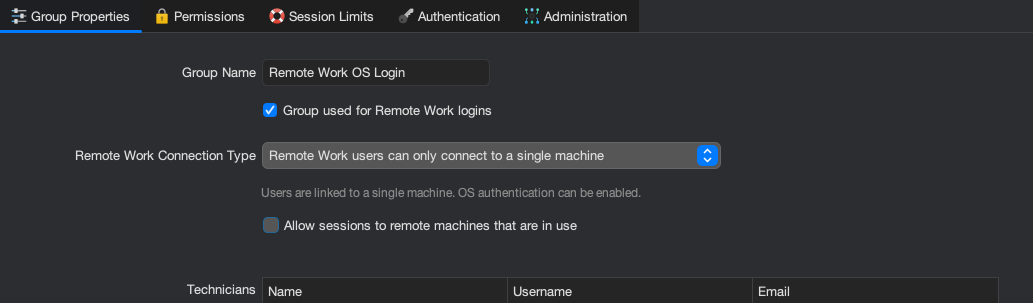
Some additional settings are shown that are specific to Remote Work groups. The Remote Work Connection Type allows you to choose how Remote Work users connect to remote machines:
- Remote Work users can only connect to a single machine forces every Remote Work users in this group to be able to connect to a single machine. This must be enabled if the user is to authenticate using OS authentication.
- Remote Work users can pick a visible machine to connect to allows a Remote Work users to pick machines from a set of Remote Work machines. The machines that are included in the set must have Remote Work enabled, and can be control by specifying one or more Machine Filters for the group.
- Remote Work users will automatically be connected to any free machine is useful in environments where users must be assigned remote machines. When a session is initialised SimpleHelp will pick a Remote Work enabled machine to connect to, and the user will not be given a choice.
Additionally, the option Allow session to remote machines that are in use can be enabled to only allow Remote Work sessions to machines that are not being used by a local user, or through a SimpleHelp session.
Disabling Remote Work
If you do not wish to use the Remote Work feature you can disable it entirely in the Administration tab under the Server Features section.